Video generation, put your ideas in motion.
Describe a scene, its movement and the camera direction. Turn a text prompt or a supported reference image into a video clip using your chosen model in the OpenCreator desktop app.
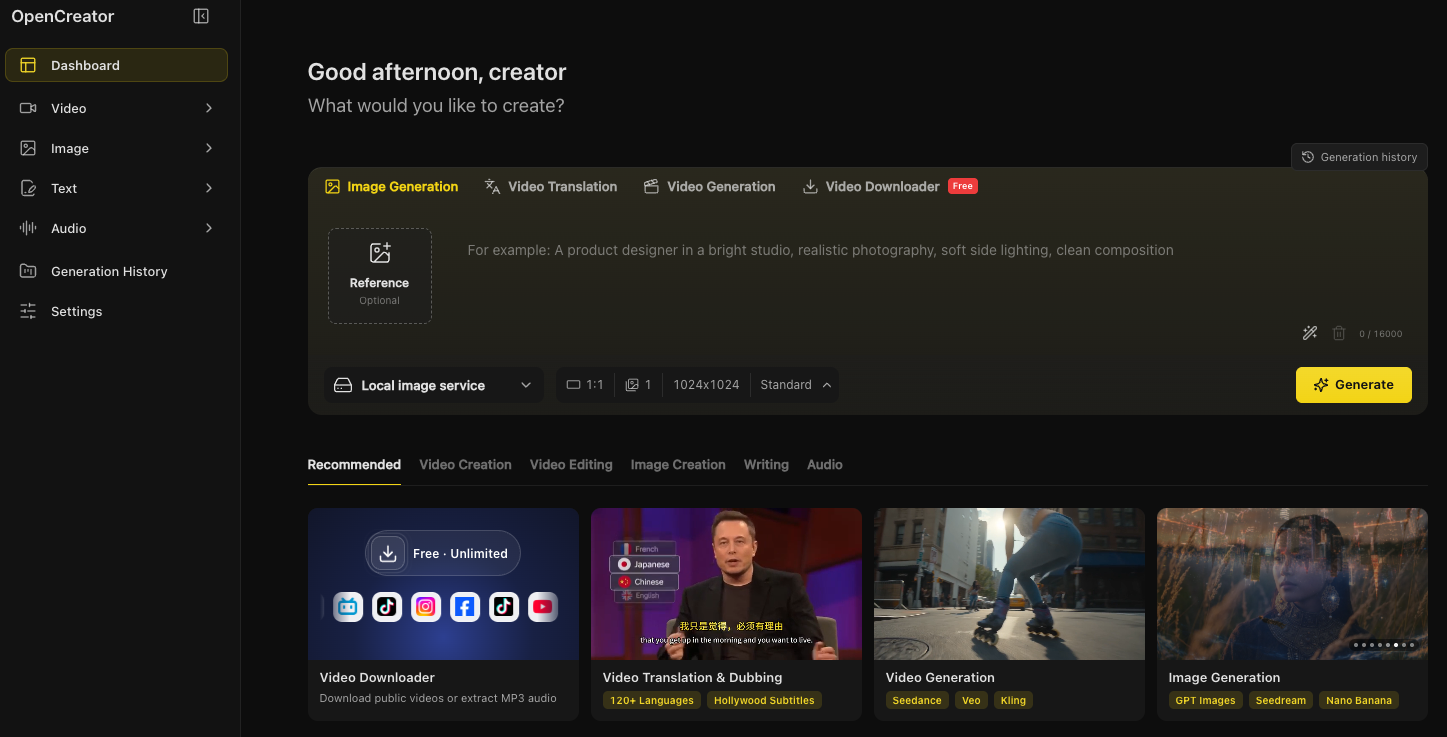
From a scene description to a clip
Start with a text prompt that describes the subject, action and visual direction. When the selected model supports reference images, use an image to guide the scene.
Reference inputs, clip duration, resolution and aspect ratio depend on the selected model. Check its available controls before planning the final output.
How to generate a video
- Select a video model. Choose an available official service or your configured video provider.
- Describe the scene. Add a prompt and, when supported, a reference image.
- Set the available options. Choose the duration and format offered by that model, then submit the generation task.
- Review the clip. Preview the result and refine your prompt for the next version.
Plan the output around your model
Different video models support different inputs and output formats. A setting available in one service may not be available in another, and audio generation is not supported by every model.
Generation runs through the configured service. Official model services use credits, and third-party providers may charge separately. Use a short scene to check your settings before a larger production.
Frequently asked questions
Can I generate a video from a text prompt?
Yes. Choose an available video model in Video Generation and describe the scene you want to create.
Can I turn a reference image into a video?
You can add a reference image when the selected video model supports image input. Reference support varies by model.
Can I choose the duration and aspect ratio?
Use the duration, size and aspect ratio options exposed by the selected model. The choices differ across services and models.