Subtitle translation, keep your words moving.
Bring existing subtitles to another audience. Import an SRT file in the OpenCreator desktop app, choose a target language and translate the text without preparing a video or generating a voice track.
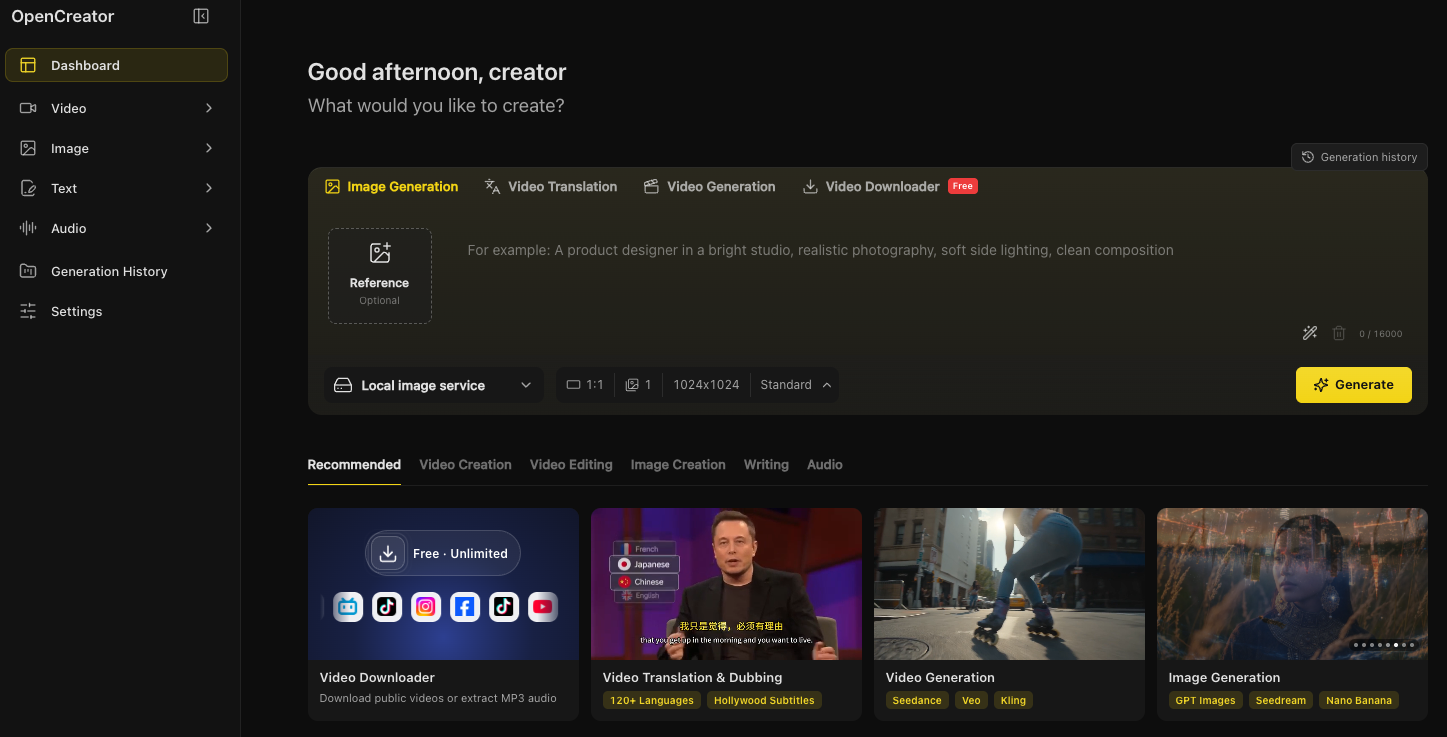
Translate subtitles without a video
Subtitle translation starts with an SRT file containing text and timecodes. It is useful when you already have a transcript with timing and need a version in another language.
This workflow does not require a video source, speech recognition, dubbing or video composition. Configure an available text model to translate the subtitle content.
How to translate an SRT file
- Prepare your subtitles. Use an existing SRT file with the source text and timecodes.
- Open subtitle translation. Import the file and select the source and target languages.
- Choose a text service. Select a configured text model and run the translation.
- Review the output. Check names, terminology and line length, then save the translated subtitles for your project.
Choose the right starting point
If you only have a video and need to recognize its speech first, start with Video Transcription. If you also need translated dubbing or a composed video, use Video Translation.
Review translated subtitles in context before publishing. The desktop app is open source; online text models may charge for usage and receive the subtitle content required to process the request.
Frequently asked questions
Do I need to import a video to translate an SRT file?
No. Subtitle-only translation works from an existing SRT file and does not require a video, dubbing or video rendering.
Which service do I need for subtitle translation?
Configure an available text model in OpenCreator. Transcription and speech services are not required when you start with an SRT file.
Does subtitle translation generate a dubbed video?
No. This workflow translates subtitle text. Use Video Translation for optional dubbing and video composition.