Video clips, find the moments worth sharing.
Turn a long recording into standalone short clips. OpenCreator uses AI to identify highlights, with controls for your target clip duration and number of results.
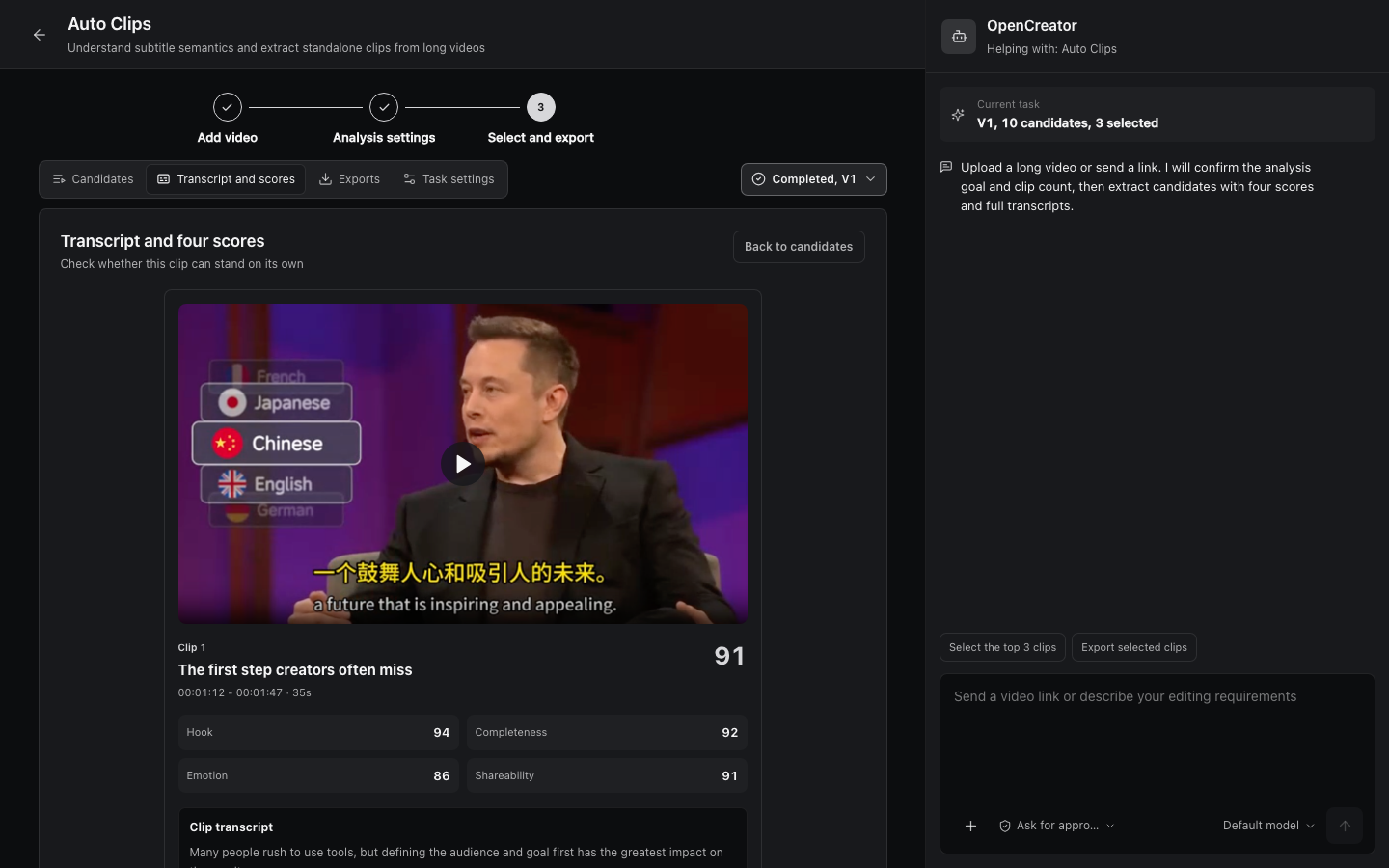
Start with a long video
Use a local recording or a supported public video URL. Interviews, talks and other long-form recordings can provide material for shorter excerpts. The app analyzes the source to propose standalone clips.
Set the desired duration and number of clips to guide the task. The result depends on your source and configured services; review each excerpt in context before using it.
How to make short clips
- Add a video. Select a local video file or a supported public URL.
- Set the clipping goal. Choose the target duration and number of clips.
- Analyze the source. Let the tool identify highlights and prepare candidate segments.
- Review and save. Check the selected moments, preview the results and save clips for your next edit.
Review the meaning, not just the cut
A useful excerpt needs enough context to stand on its own. Check the beginning and ending of each clip, the speaker’s meaning and whether the duration suits your destination.
Video clipping selects material from an existing video. To create new footage from a prompt or reference image, use Video Generation. Any online model services involved in analysis may have separate usage charges.
Frequently asked questions
Can I turn one long video into several short clips?
Yes. Set the desired clip duration and quantity, then let the tool analyze the video and prepare highlight clips for review.
Can I use a local video file?
Yes. Video Clips accepts local video files and supported public video URLs. URL access depends on the source platform and network conditions.
Does video clipping generate new footage?
It extracts clips from your source video. Use the separate Video Generation tool to create new footage from text or supported reference images.